Netlify
Deployments
Full guide for triggering builds, tracking deployment progress, and viewing logs for your Netlify sites from Directus.
After linking your Netlify account and configuring your sites, manage all deployment activities directly from Directus.
Trigger deployments after publishing content updates that impact your frontend.
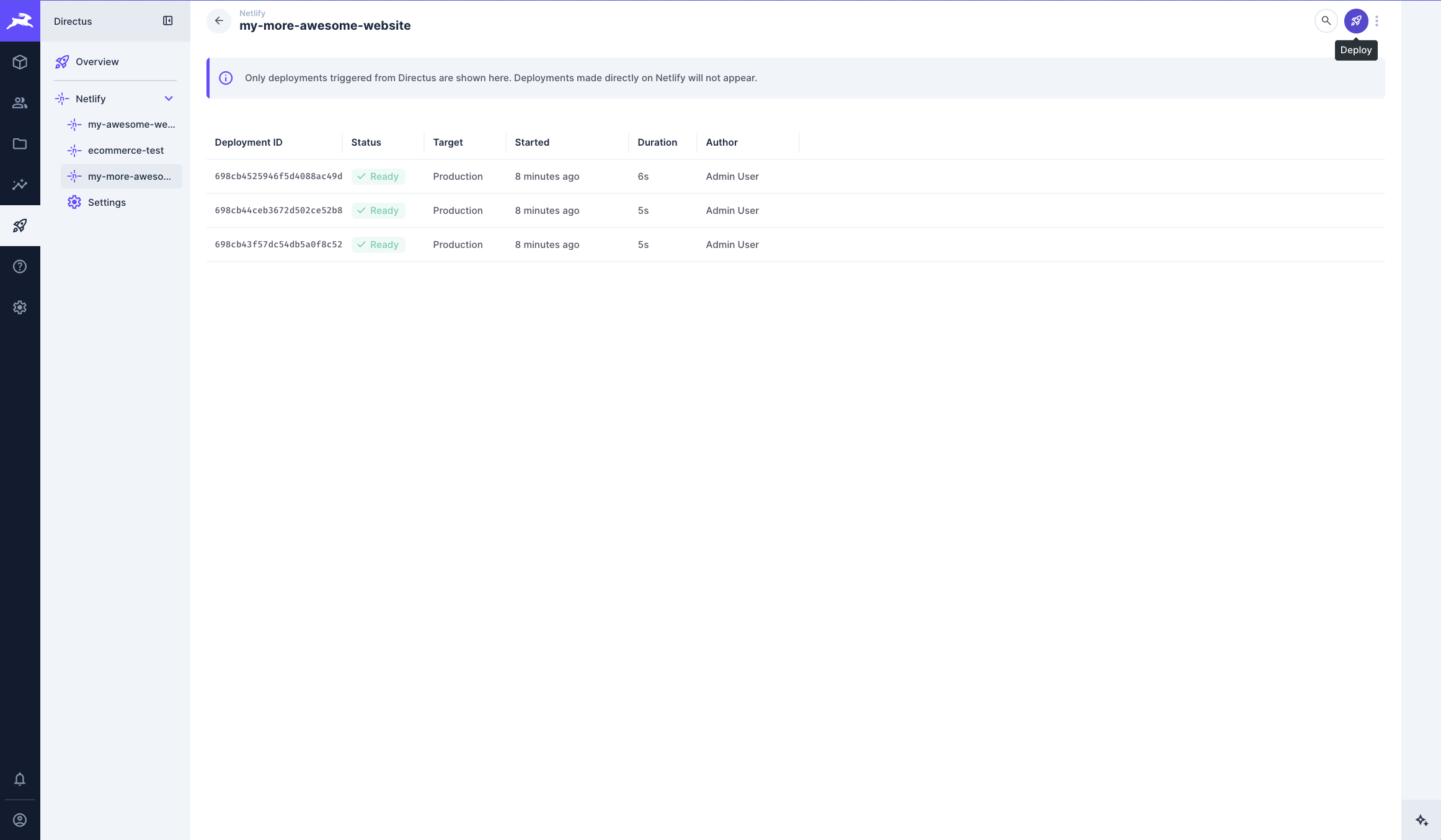
Triggering Deployments
Start a new deployment for any connected Netlify site:
- Navigate to the Deployment module
- Click on the Netlify provider
- Select the site you want to deploy
- Click the Deploy button in the top right
- Netlify will begin building and deploying your site
Each deployment is logged in Directus with its deployment metadata.
Monitoring Deployment Status
Only deployments triggered from Directus appear here. Deployments initiated directly in Netlify will not be displayed.
Track your deployments in the deployment list view. The list displays:
- Deploy ID: Netlify identifier for each build
- Status: Current deployment state
BUILDING: Build is in progressREADY: Site is successfully built, deployed, and liveCANCELED: Deployment was stopped before completionERROR: Build or deploy phase failed
- Context: Deployment environment (production, branch deploy, etc.)
- Started: When the build began
- Duration: Build time
- Author: Who initiated the deployment
Viewing Build Logs
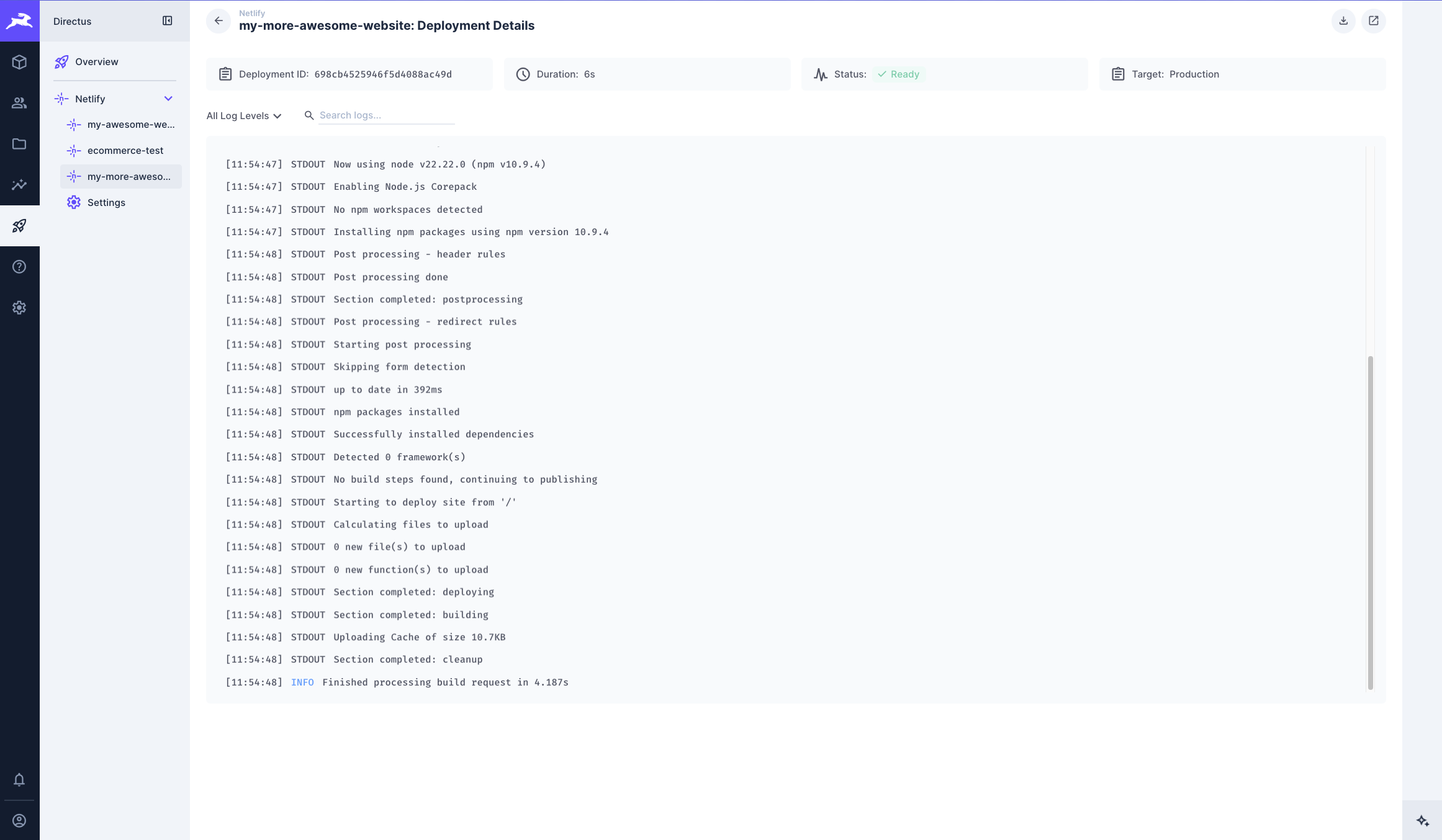
Access detailed build logs for any deployment:
- Click any deployment from the site list
- View the full build output, including:
- Build steps and timing
- Plugin execution details
- Asset optimization and caching
- Error messages (if applicable)
- Use search to locate specific log entries
- Filter by log level (All, Stdout, Stderr) to narrow results
Build logs are essential for diagnosing deployment issues and understanding your build pipeline.
Exporting Logs
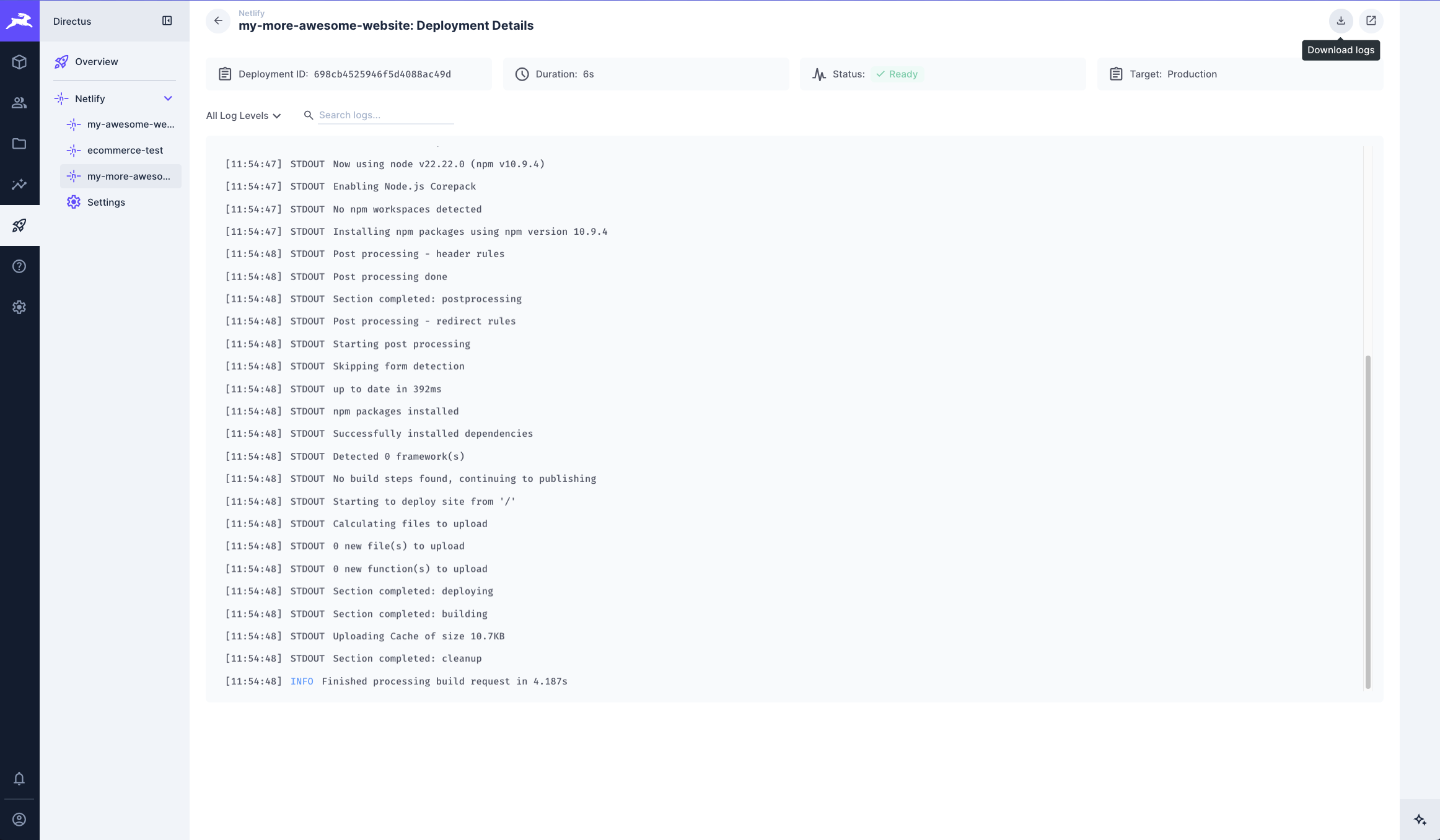
Download deployment logs for records or debugging:
- Open the deployment details view
- Click the Download icon in the top right
- Logs are saved as a text file with timestamps
Visiting Deployed Sites
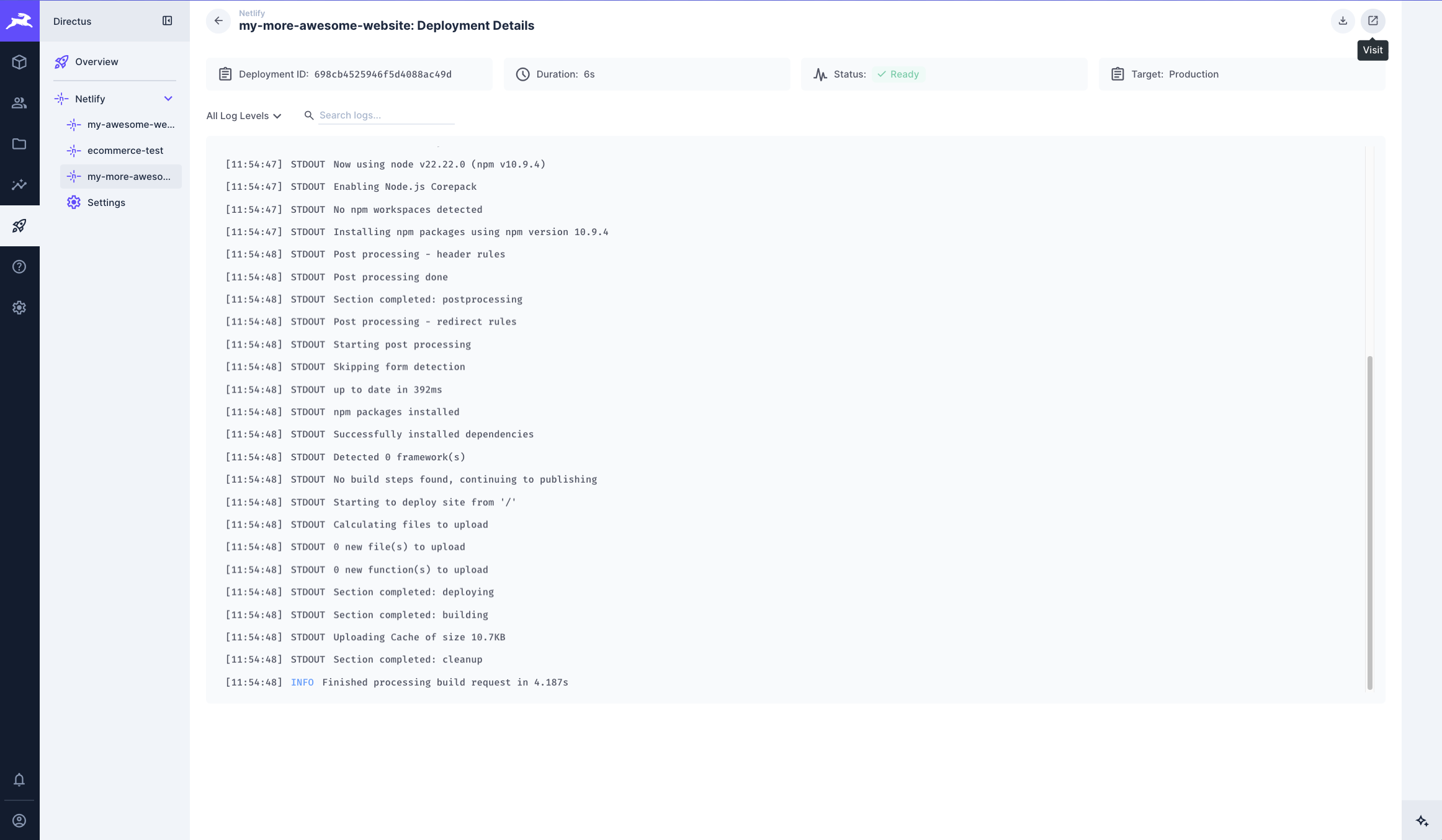
Access your live deployments quickly:
- From the deployment details view, click the Visit button
- Your deployed site opens in a new tab
Best Practices
Deployment Workflow
- Deploy after publishing content changes that affect your frontend
- Monitor initial deployments after setup to confirm builds succeed
- Retain build logs for failed deployments to aid troubleshooting
Performance Tips
- Build durations in the deployment list help track performance trends
- Netlify's build cache can accelerate subsequent builds
Troubleshooting
- For failed deployments, review build logs for error details
- Confirm your Netlify site configuration and build settings
- Verify your Personal Access Token has required permissions
Next Steps
- ← Back to Integration Return to the integration overview
Get once-a-month release notes & real‑world code tips...no fluff. 🐰